Leaderboard
-

Matt Bellamy
Admin2Points1,477Posts -
Kenji Murakami
*VIP member1Points2,293Posts -
guyverfan
*VIP member1Points596Posts -
chrisguyver
Member+1Points19Posts


Popular Content
Showing content with the highest reputation on 05/30/2016 in Posts
-
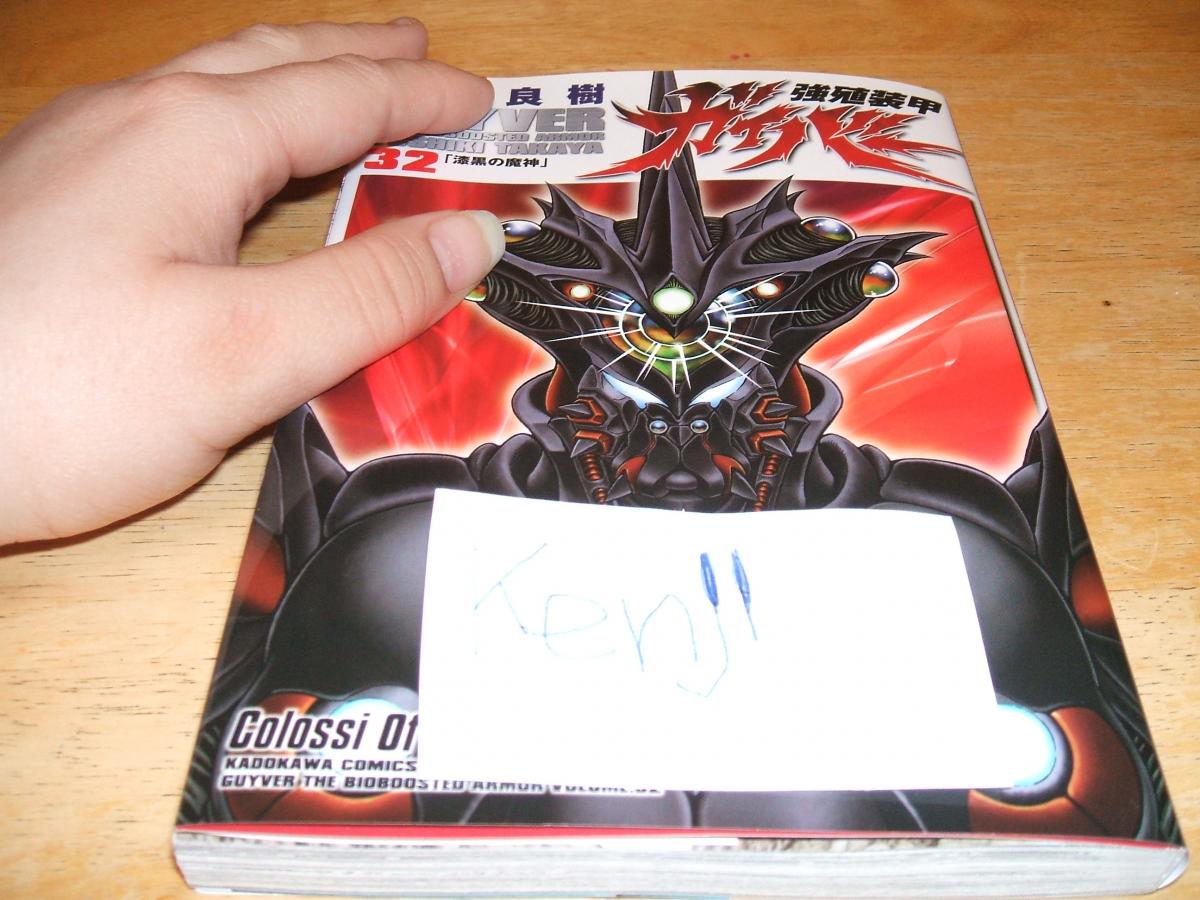
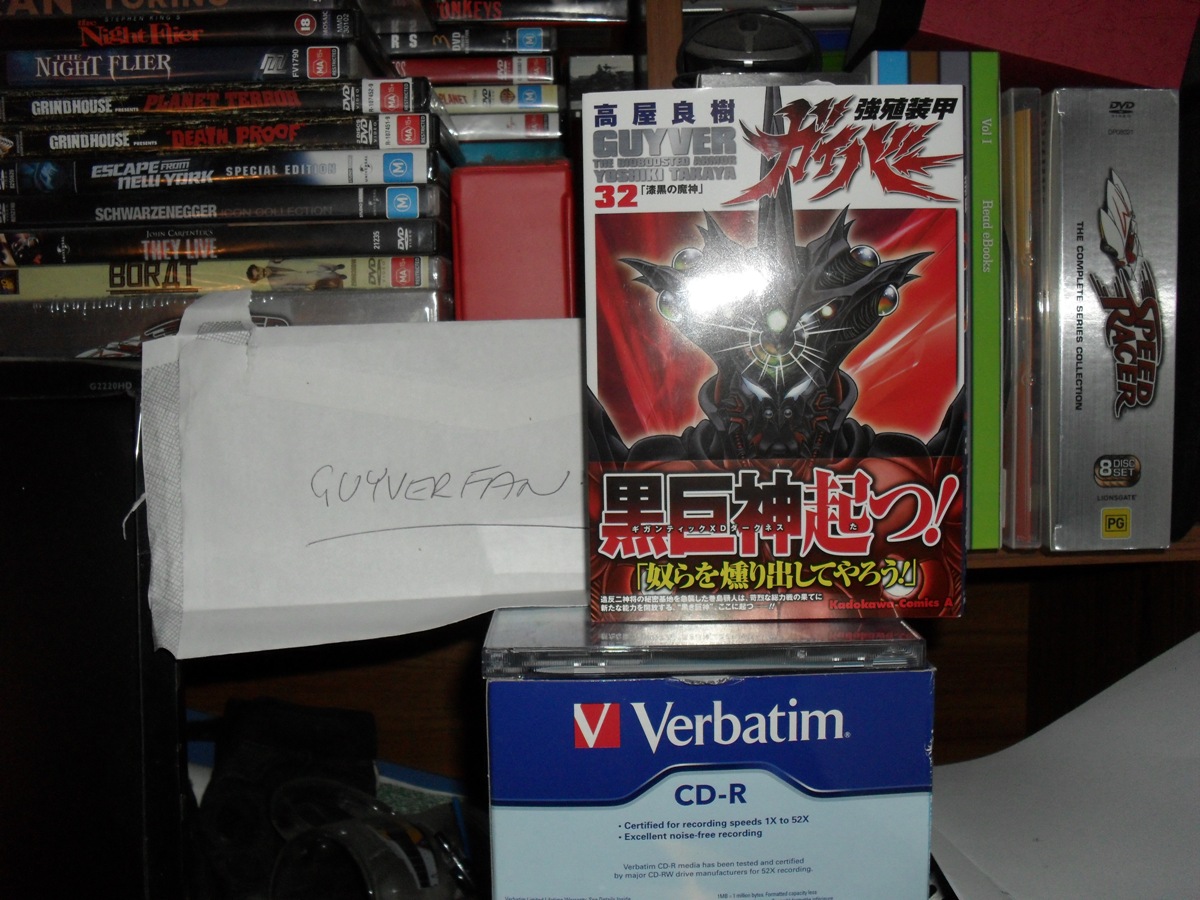
Well, under the new system, essentially it only matters that you OWN the books themselves. How you get them, is entirely up to you. Because let's face it, Takaya does not make money on each issue. Nor does he get paid by the sotres who buy the books. He gets money from Kadokawa under whatever contract he has. It's essentially like making digital copies of DVDs that you own. You are free to do that all you want, so long as you don't distribute them publically. What we are doing is "Sharing translations with other like owners who legally own the material" instead of normal scanlations. The shared translations just happen to be in scanlated format. If some copyright lawyer/supercop/robocop came by your house and was asking if you owned that material, all you'd have to do is hold up the book and say " Yep."1 point
-
No matter if your book is in bad shape, the scans are all in high quality!1 point
-
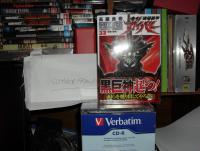
I got mine now! (And, upon reflection, I probably should have wrote my name in marker instead of pen )
 1 point
 -
unfortunately, had to buy my copy off an amazon seller, can't believe it took a month to arrive! next time, i'll be waiting for my regular to get it in stock. anyway, interesting to see that shizu has shield abilities, although it looked like she was struggling to hold such a small field. anyone have any idea's as to what was wrapped in plastic in a box, placed infront of takaya and max? i was kind of excited in thinking 'prototypes'.
 1 point